
Installing an app from an apk file feels unfamiliar to people who only ever use the Play Store, and that unfamiliarity is exactly what scam sites take advantage of. This 2fun bet install guide exists so you can complete the process confidently: you will know which warning screens are normal, which permissions are reasonable, and which prompts should make you stop immediately.
Nothing on this page requires rooting your phone, installing a helper tool, or disabling your security software. If any instruction anywhere tells you to do those things to install a gaming app, close that page.
Before you begin
- Storage: keep at least a few hundred megabytes free. Android needs room for the file and the unpacked app.
- Connection: download over Wi-Fi if you can — an interrupted download is the single biggest cause of "app not installed" errors.
- Android version: a phone from roughly the last six or seven years will be fine. Very old versions may not run modern security libraries.
- Old builds: if you previously installed the app, you can update over the top; only uninstall if the update refuses.
Step-by-step: installing the 2fun bet apk
- 1Download from the game's own pageUse a play or download button on this website. It opens the official game page, and the Android download link there always serves the current build. We do not mirror the file.
- 2Accept the browser's file warningChrome shows a note that this type of file can harm your device. It shows this for every apk on the internet. Choose to keep the download.
- 3Open the downloaded fileTap the download notification, or open Files → Downloads and tap the apk. Android now shows the installer screen.
- 4Enable 'Allow from this source'The first time only, Android blocks the install and offers a Settings shortcut. Turn on the permission for the browser or file manager you used, then press back and tap the file again.
- 5Review and confirm the installThe installer lists what the app can access. Read it, then tap Install. The process finishes in a few seconds on most phones.
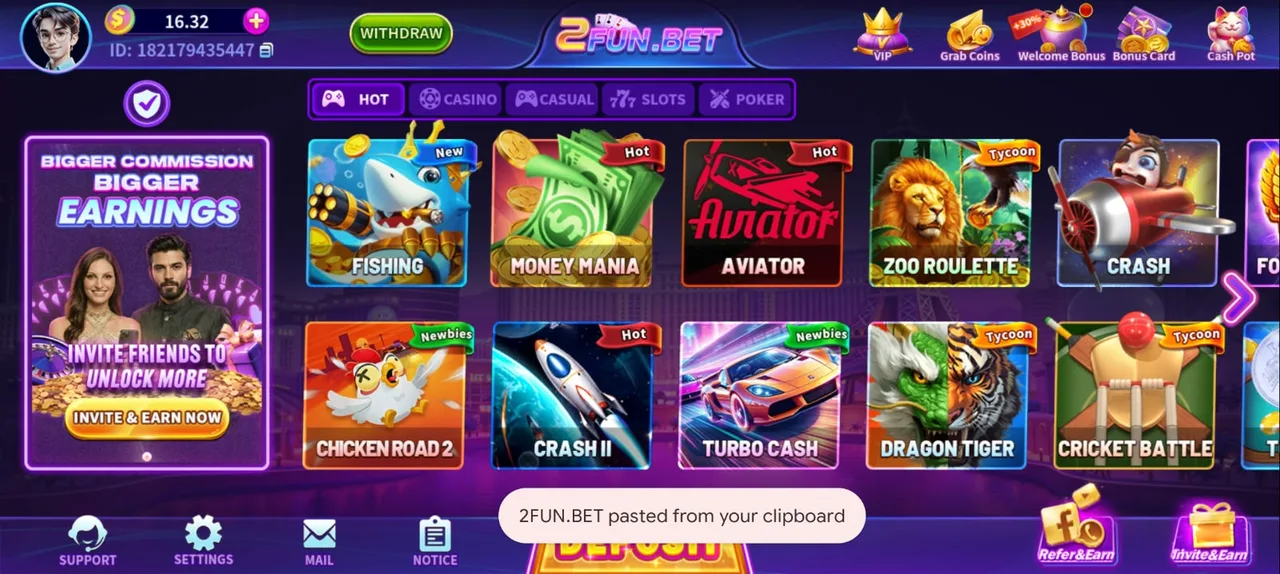
- 6Open the app and sign inTap Open, allow notifications if you want promotion and update alerts, and continue to registration or login with your mobile number.
Understanding the permissions
Permission lists look alarming until you know what each item is for. These are the ones a gaming app of this type reasonably needs:
| Permission | Why the app asks | Safe to allow? |
|---|---|---|
| Storage / media | Cache game assets and save downloaded updates | Yes |
| Notifications | Bonus reminders, update alerts, withdrawal status | Optional — decline if you dislike alerts |
| Network access | Required for every online round and payment | Yes |
| Install packages | Applying in-app updates without a browser | Yes, for the app itself |
How to update the 2fun bet app
Updates are handled inside the app. When a new build is available, a prompt appears at launch; accepting it downloads and installs over the existing version while keeping your account, balance and settings untouched. If you skip a prompt and want to update later, downloading the current apk again from the official page and installing over the top achieves the same result. You do not need to uninstall first, and you should never need to log in from scratch.
Fixing common install errors
"App not installed"
Three usual causes. The download was incomplete — delete the file and download again over Wi-Fi. Storage is full — clear a few hundred megabytes. Or a conflicting older version exists — uninstall it, then install the fresh file.
"Parse error" or "There was a problem parsing the package"
The file is corrupted or was renamed. Re-download from the official page and do not rename the file yourself. This error also appears when a very old Android version cannot read a newer package format.
Play Protect blocks the install
Google flags any apk installed outside the Play Store. If you downloaded from the game's own page, you can choose "Install anyway". If you downloaded from a random link a stranger sent you, take the warning seriously and delete the file.
The install button does nothing
The unknown-sources permission is set for a different app than the one you are installing from. Open Settings → Apps → Special access → Install unknown apps and enable it for the exact browser or file manager holding the file.
App installs but crashes at launch
Restart the phone, clear the app's cache from Settings → Apps → 2Fun Bet → Storage, and confirm you have a working connection. If it still crashes, reinstall the current build.
Uninstalling cleanly
If you decide to stop playing, withdraw your balance first — removing the app does not close the account or move your money. Then long-press the icon and uninstall as normal, and clear the downloaded apk from your Downloads folder so an outdated file does not get reinstalled by accident later.
Install FAQ
Is the 2fun bet install free?+–
Yes, downloading and installing the app costs nothing. Money only enters the picture when you deposit into the in-game wallet.
Do I need to root my Android phone?+–
No. Rooting is never required, and a rooted phone is a much riskier place to keep payment apps.
Will installing again delete my account?+–
No. Your account lives on the game's servers and is tied to your registered mobile number, so reinstalling and logging in restores everything.
Should I keep unknown sources enabled afterwards?+–
Turning it back off after installation is good practice. You can re-enable it for a few seconds whenever you need to install an update manually.
With the app installed, continue to the registration guide, then read the deposit page before adding funds. Playing on a computer instead? See download for PC, and iPhone owners should use download for iOS.